Product tour
The whole product, one screen at a time.
Twelve stops through what your alumni see, what members get after signing in, and what the committee runs. Public pages are real screenshots of the live demo; the signed-in screens are drawn with sample data, and labelled as drawings.
Public pages · real screenshots
Twelve stops
From the public site to the admin panel.
Use the arrows, the dots or your keyboard. The last stop opens the live demo.
Real screenshot of the live demo
Step 1 of 12
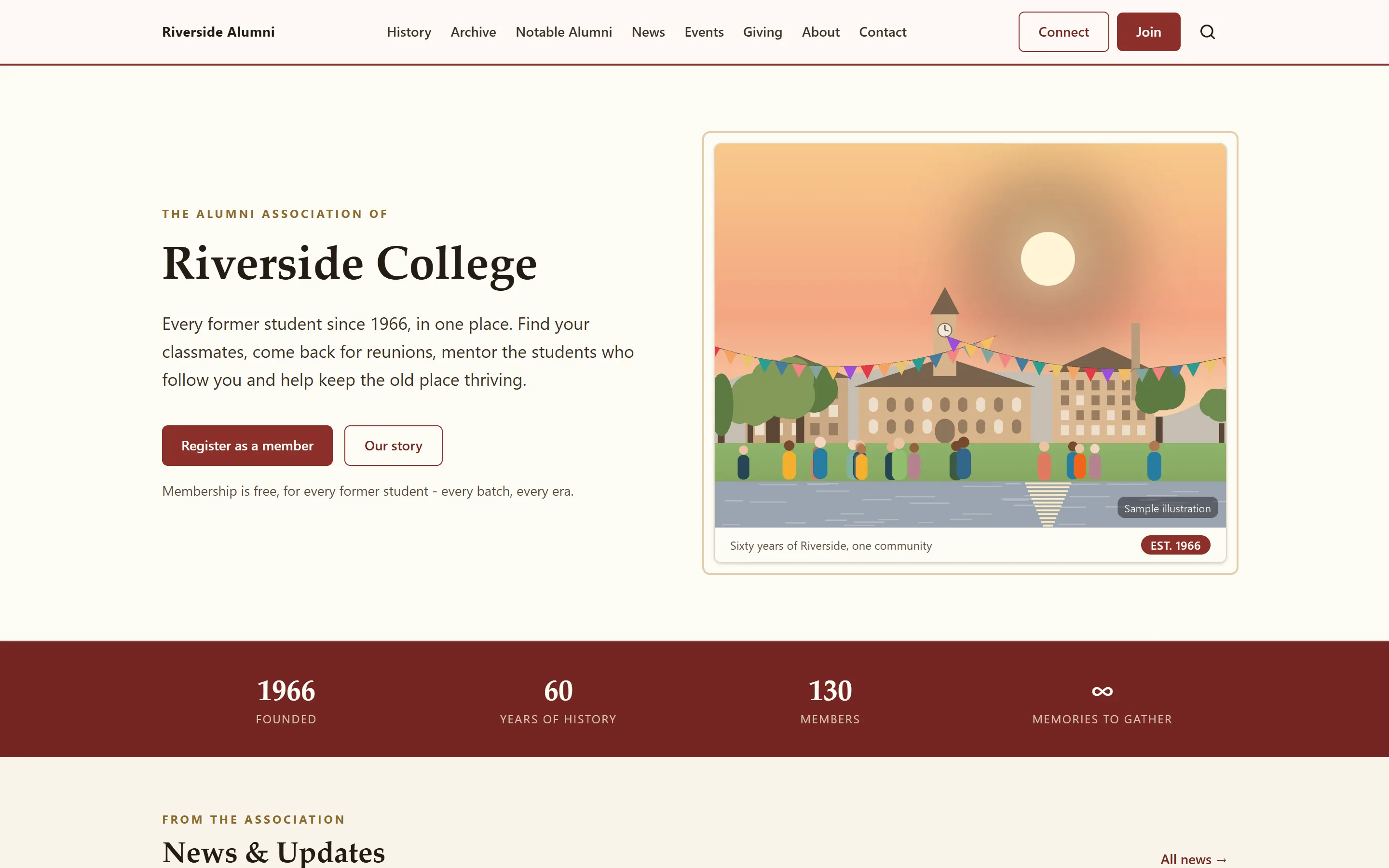
The public site your alumni find
Your own domain, your logo and four colours. The homepage is built from seven block types (a hero, a stats band, latest news, upcoming events, rich text, a call to action and custom HTML), which you reorder by dragging.
Real screenshot of the live demo
Step 2 of 12
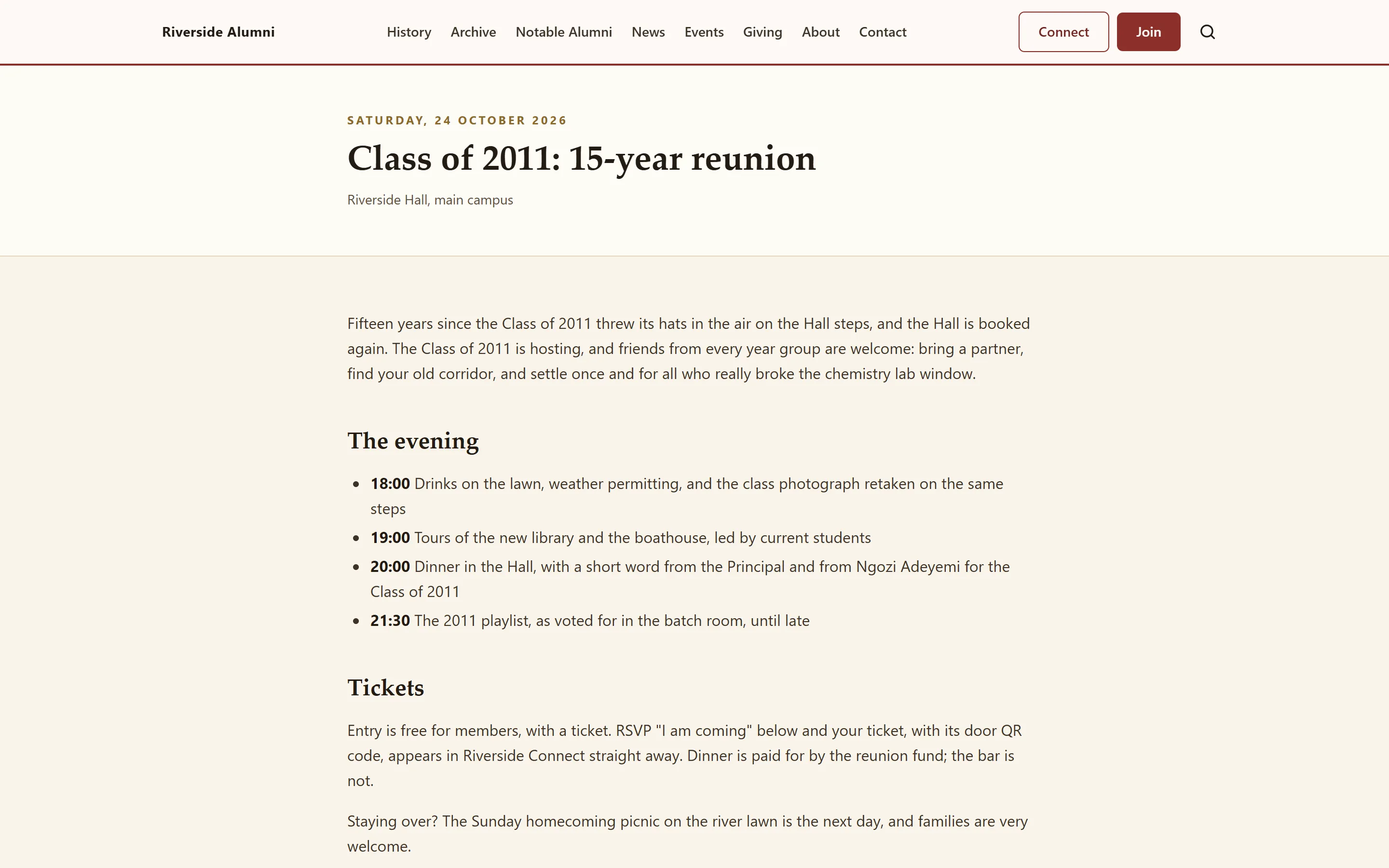
Events with RSVPs and seats left
Each event has a venue, times, a cover image and, if you want one, a capacity. Signed-in members answer Yes, Maybe or No, and a reminder goes to everyone who said Yes two days before.
- Your ticket15-year reunion · Class of 2011
K7QM-2XDP
Drawn illustration with sample data
Step 3 of 12
A free QR ticket for the door
On a ticketed event, a Yes issues an 8-character code and a QR ticket by email. At the door, anyone with the events area scans it on a phone or types the code. Changing to No releases the seat.
- Riverside Alumnialumni.riverside.eduWelcome back, SamClass of 2009 · 142 classmates hereDirectoryEventsGivingArchiveNext upHomecoming picnicSat 3 Oct · 38 going
Drawn illustration with sample data
Step 4 of 12
The member home
After signing in, members get a home page with their membership card, the next gathering, and tiles for the directory, their class room, jobs, mentoring and the archive.
Alumni directory
Search name, city, employerClass of 2009PKPriya Kapoor2009 · BengaluruMentorAMAna Martins2009 · LisbonMentorSNSam Njoroge2009 · NairobiMemberTSTom Sato2009 · OsakaMemberDrawn illustration with sample data
Step 5 of 12
A directory members control
Only signed-in members can search it, by name, city, profession, employer and class year. Each member decides, field by field, what classmates see; email and phone start hidden.
Class room
Class of 2009
PinnedReunion planning
New replies14
Class repA. Mensah
Classmates142
Drawn illustration with sample data
Step 6 of 12
A private room for every class
Every member lands in a private room for their class year automatically, with threads and replies and the class rep named. Nothing to set up, nothing to join.
Real screenshot of the live demo
Step 7 of 12
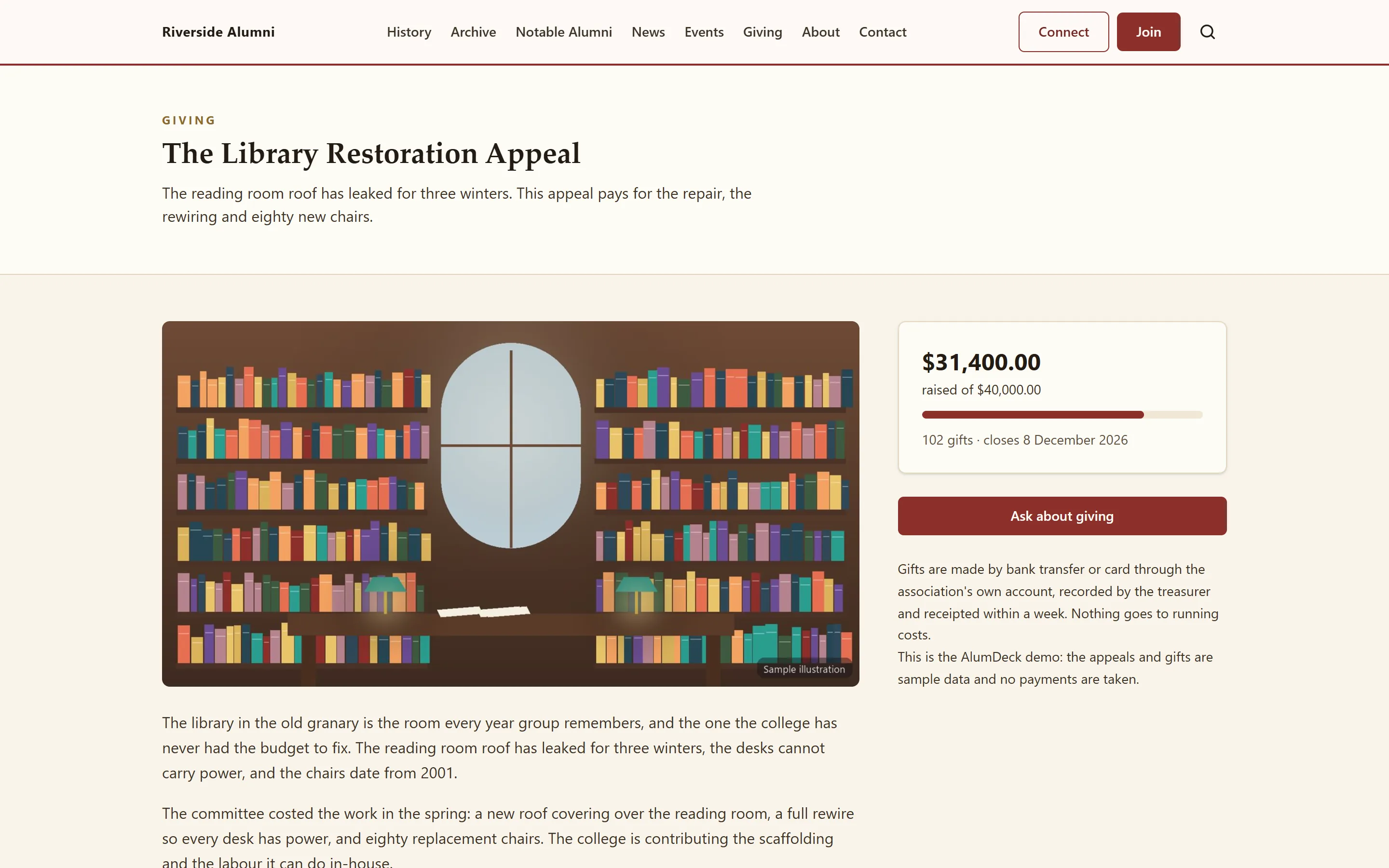
Giving appeals with running totals
Each appeal has a goal, a progress bar, a gift count and, if you switch it on, a donor wall. AlumDeck records gifts that arrive however you already collect money; it does not move money itself.
Gift receipt
Receipt RCPT-2026-0212
DonorAna Martins
Amount$50.00
AppealLibrary fund
MethodBank transfer
Drawn illustration with sample data
Step 8 of 12
Receipts the treasurer can trust
The committee records each gift: date, amount, method and reference. It takes the next number in the sequence, one button emails the receipt, and every gift exports to CSV for the accounts.
Real screenshot of the live demo
Step 9 of 12
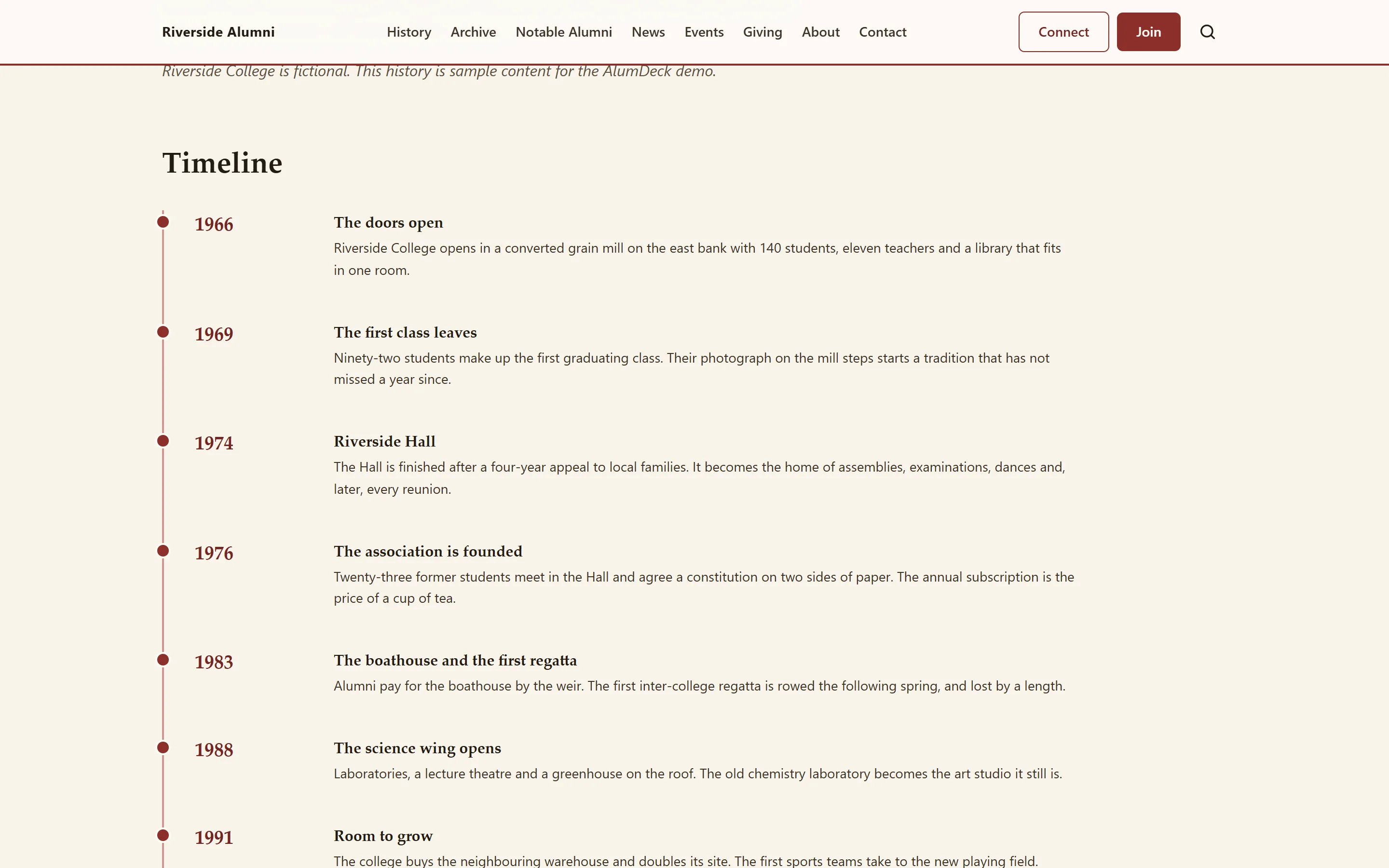
Sixty years of history
A timeline with free-text eras such as "1960s-70s", a hall of fame of notable alumni, and In Memoriam, where nothing is published until the family has agreed.
Real screenshot of the live demo
Step 10 of 12
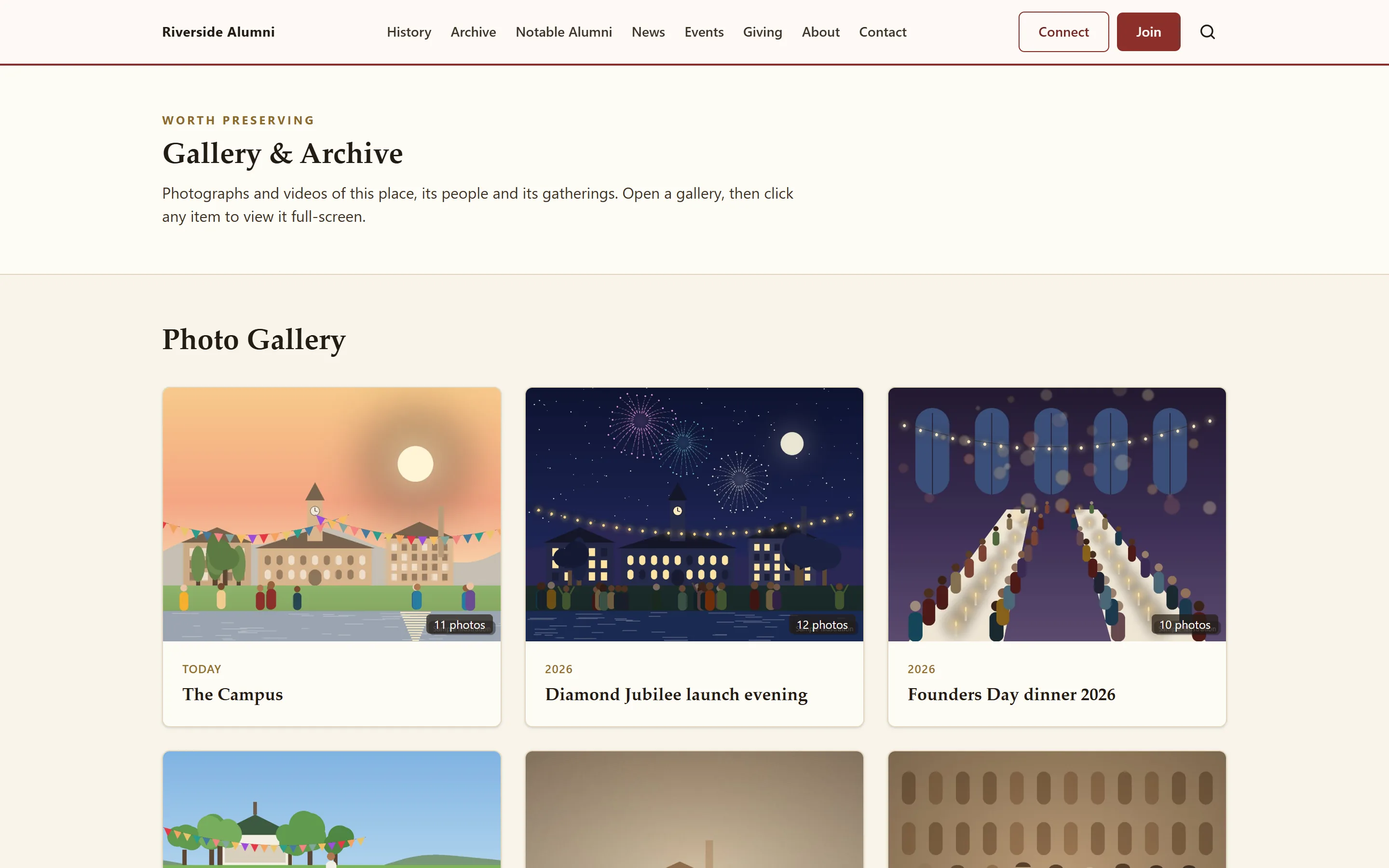
An archive members add to
Photo albums, each with an era and a lightbox. Members upload up to ten old photos at a time, and each one waits for a moderator before it appears.
- Riverside AlumniPeoplePublishingMoneyCommunityRecordsSystem
Good evening, Sam
Members1,284Waiting approval7Reunion RSVPs64Gifts this year212Needs attention
7 registrations to reviewReview
3 archive photos waitingOpen
Drawn illustration with sample data
Step 11 of 12
The admin panel
Thirteen areas, each one a permission you can hand to a helper. An attention queue for new registrations and messages, two-factor sign-in for admins, an audit log, nightly backups, and three admin layouts to choose from.
Step 12 of 12
Now try it yourself
Everything above is running at demo.alumdeck.com. Sign in as the admin or as a member and click anything: it puts itself back every night.
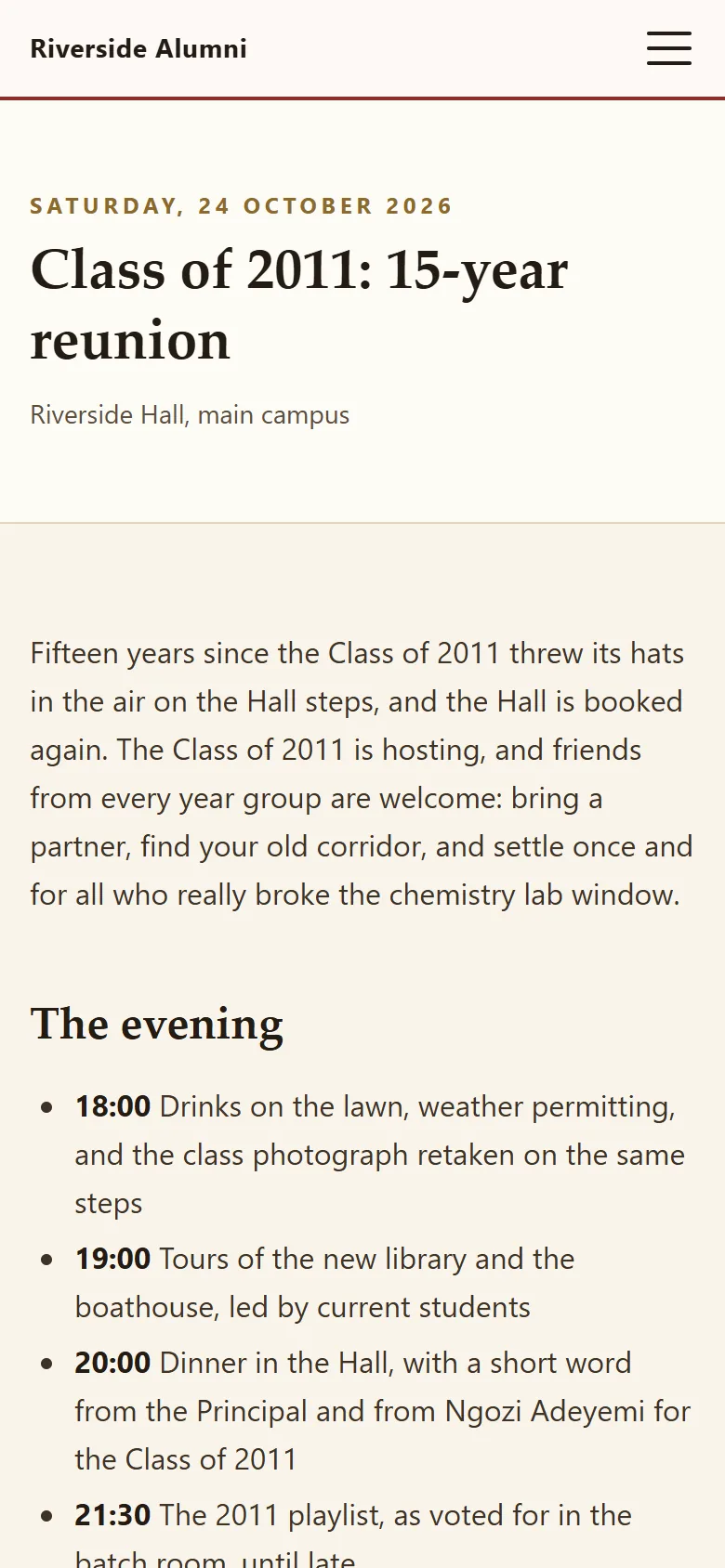
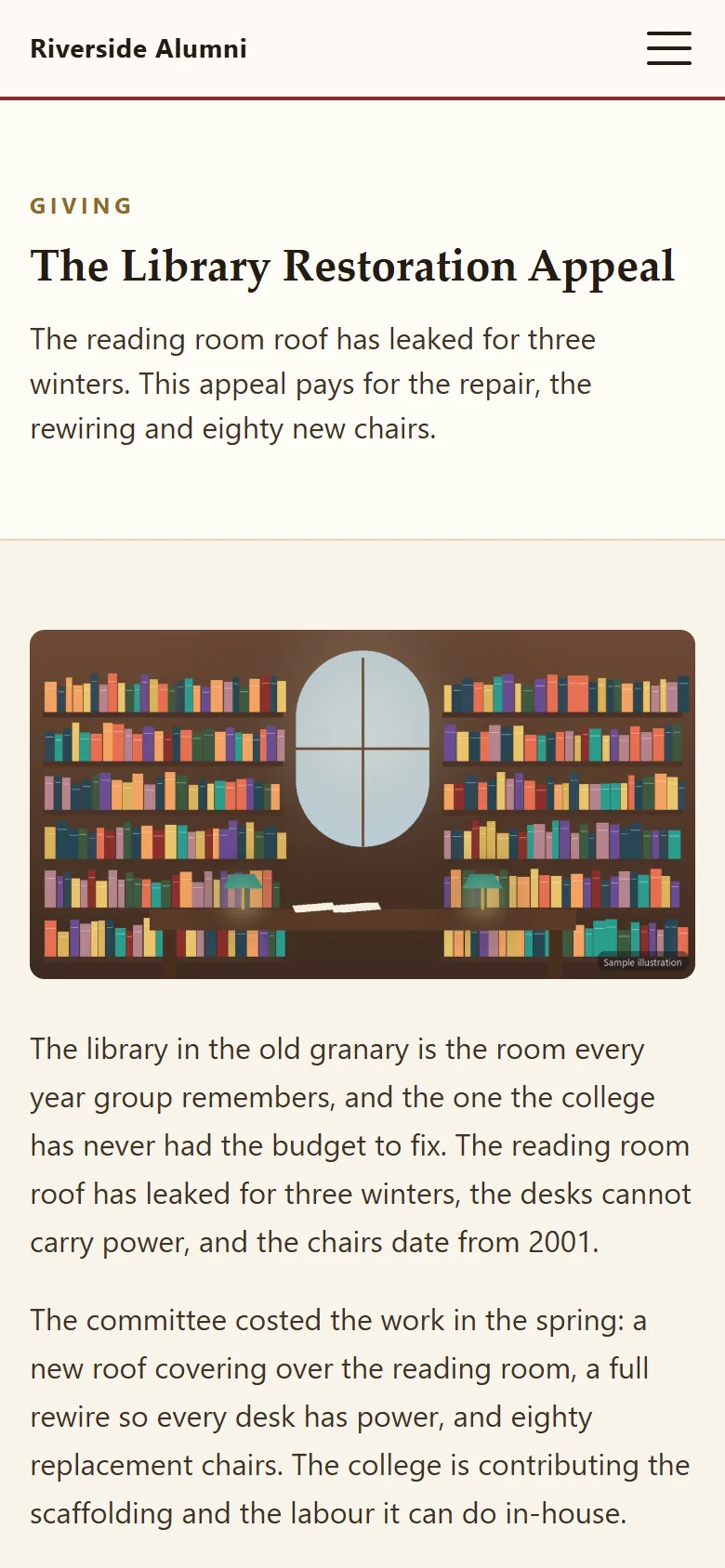
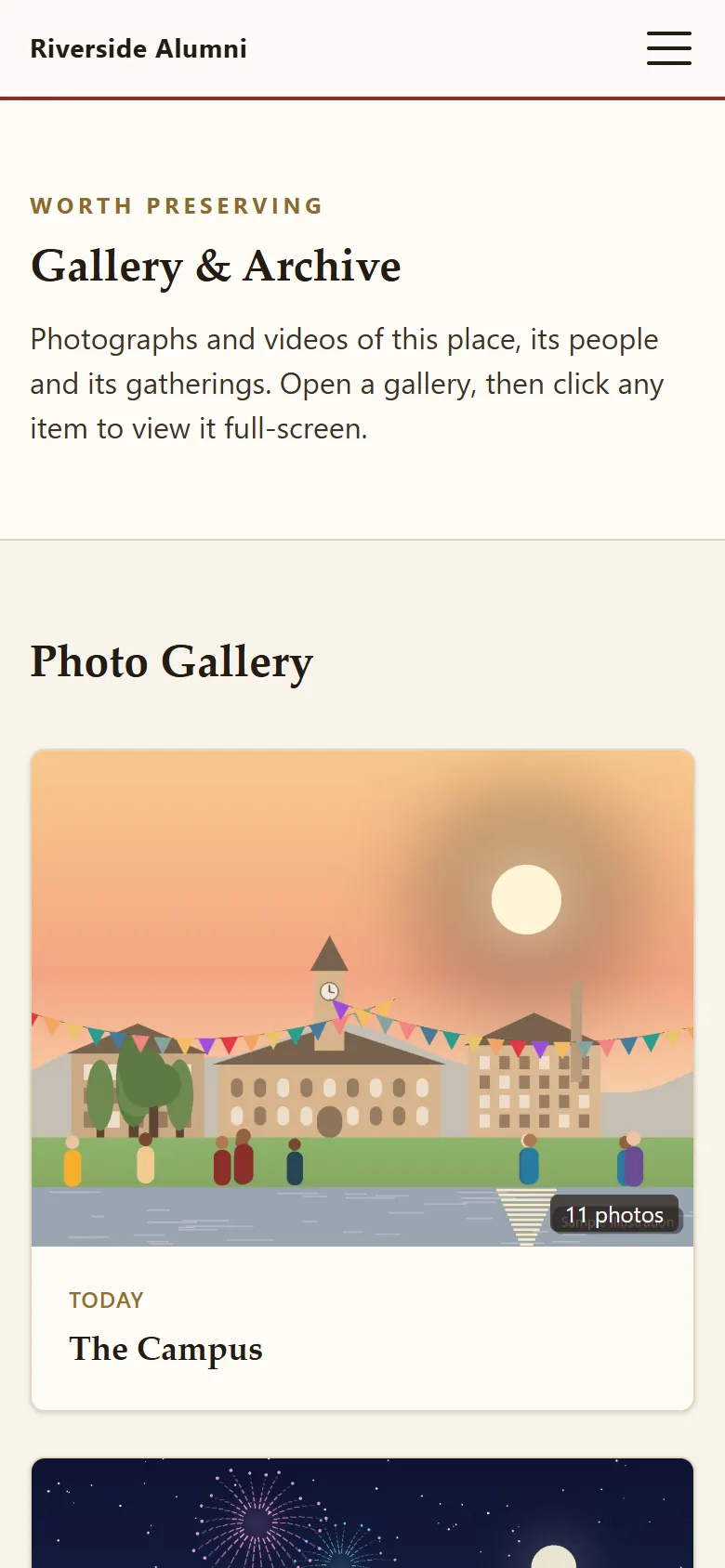
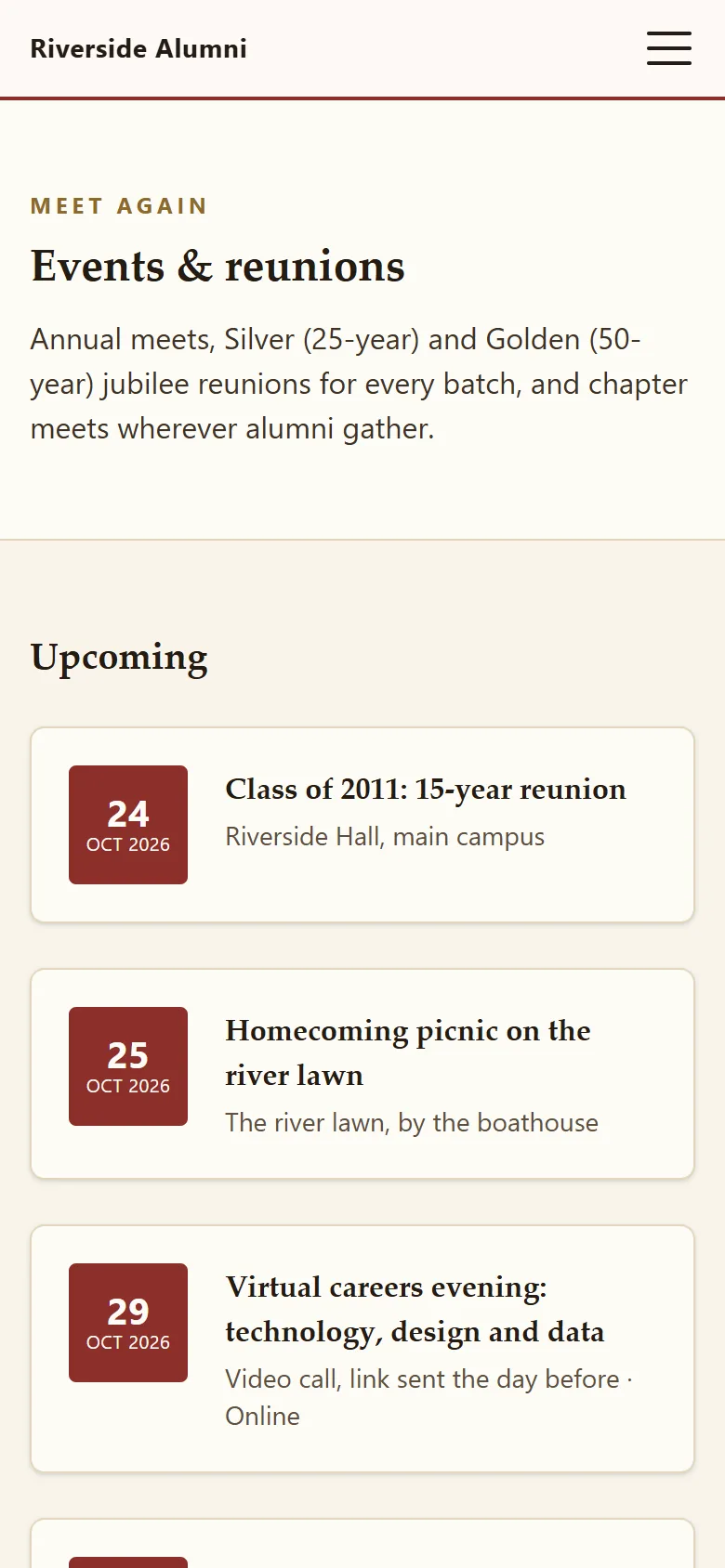
Real screenshots at phone width
The same site on a phone.
Every public page and the whole member area work at phone width, and members can install the site to their home screen.
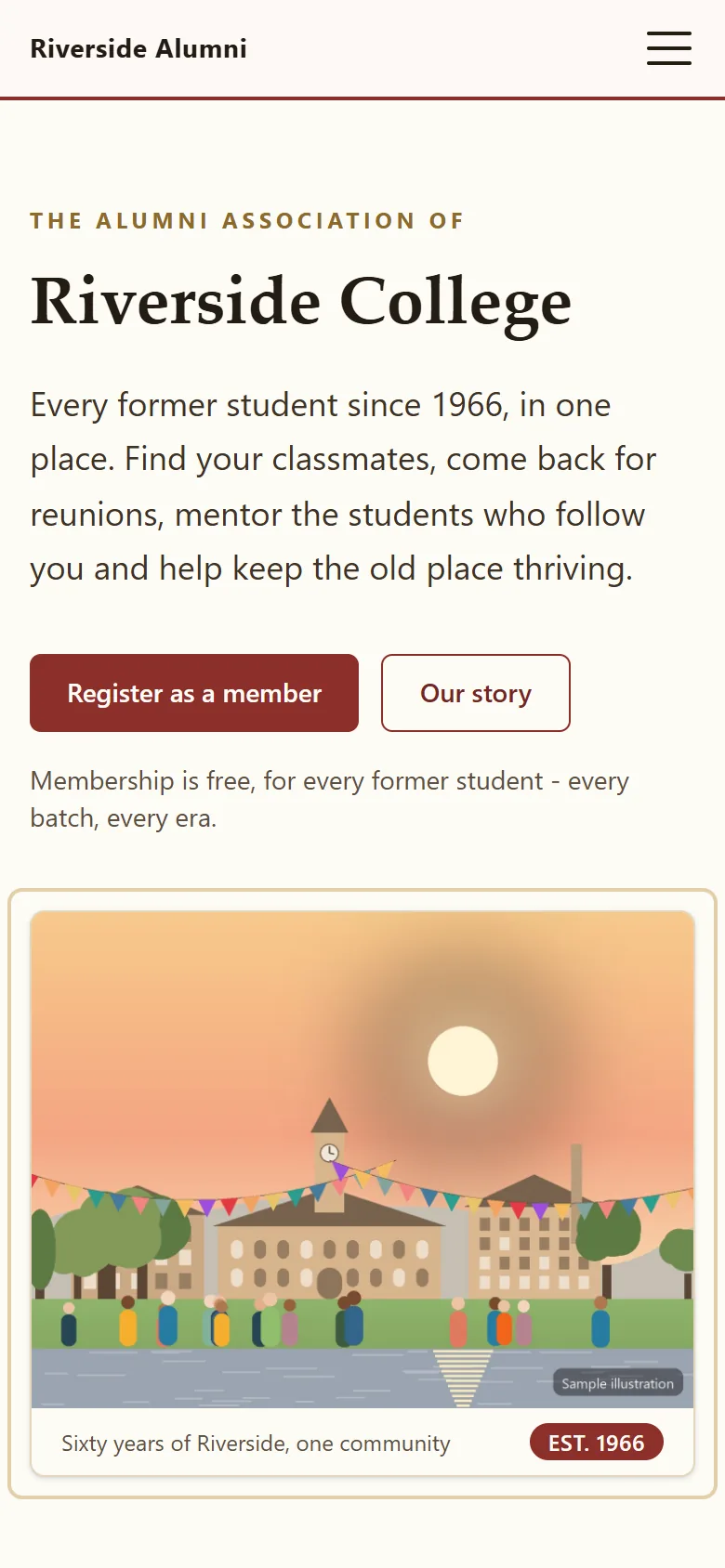
Home
Events
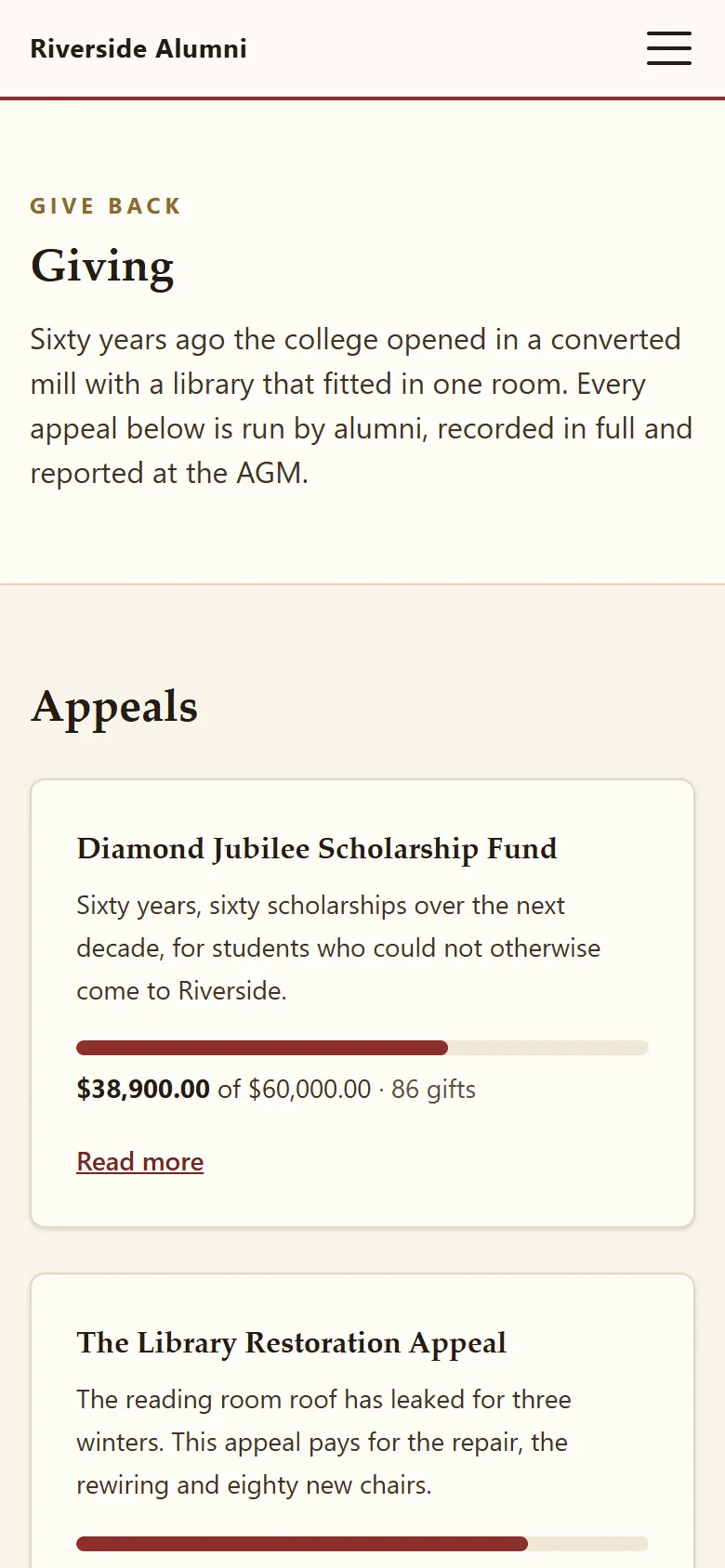
Giving
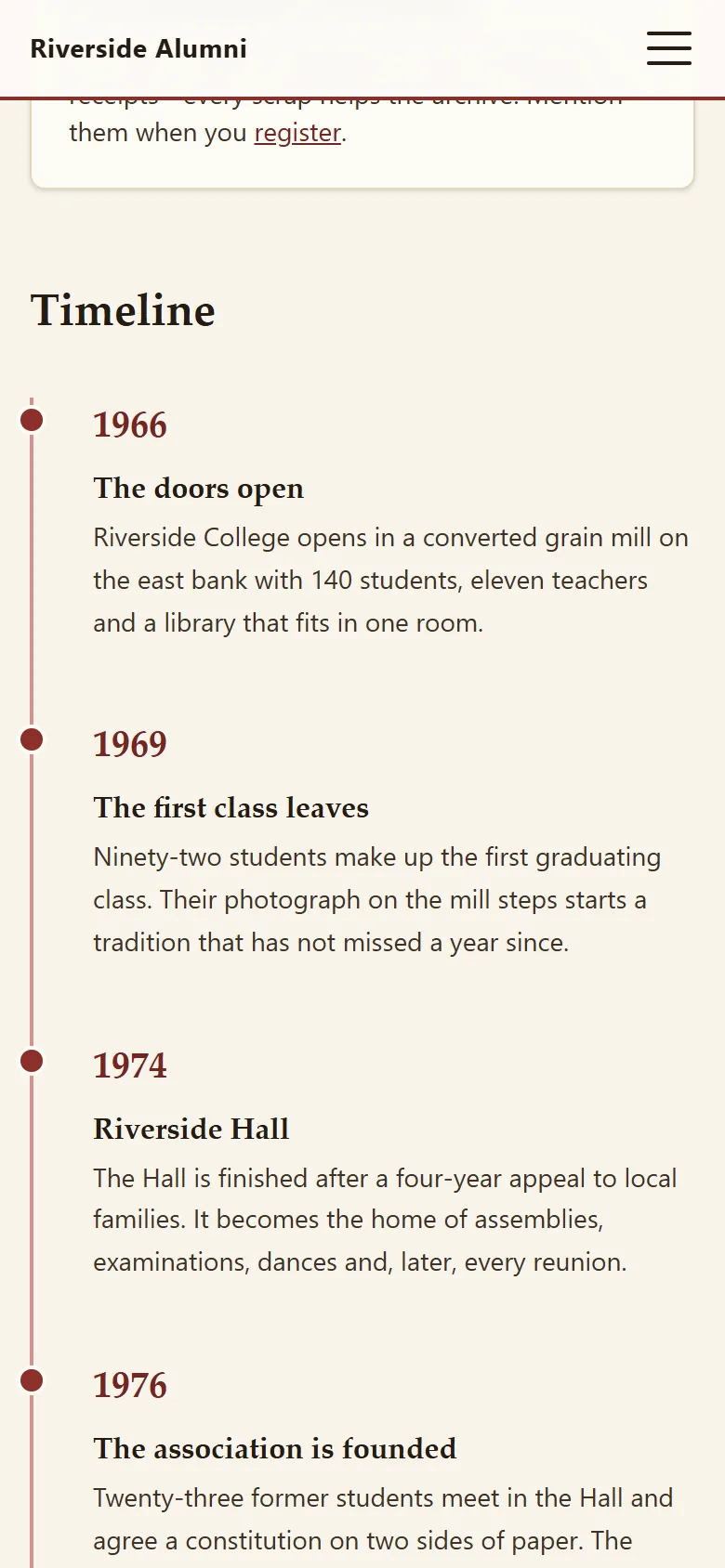
History
Archive

Hall of fame
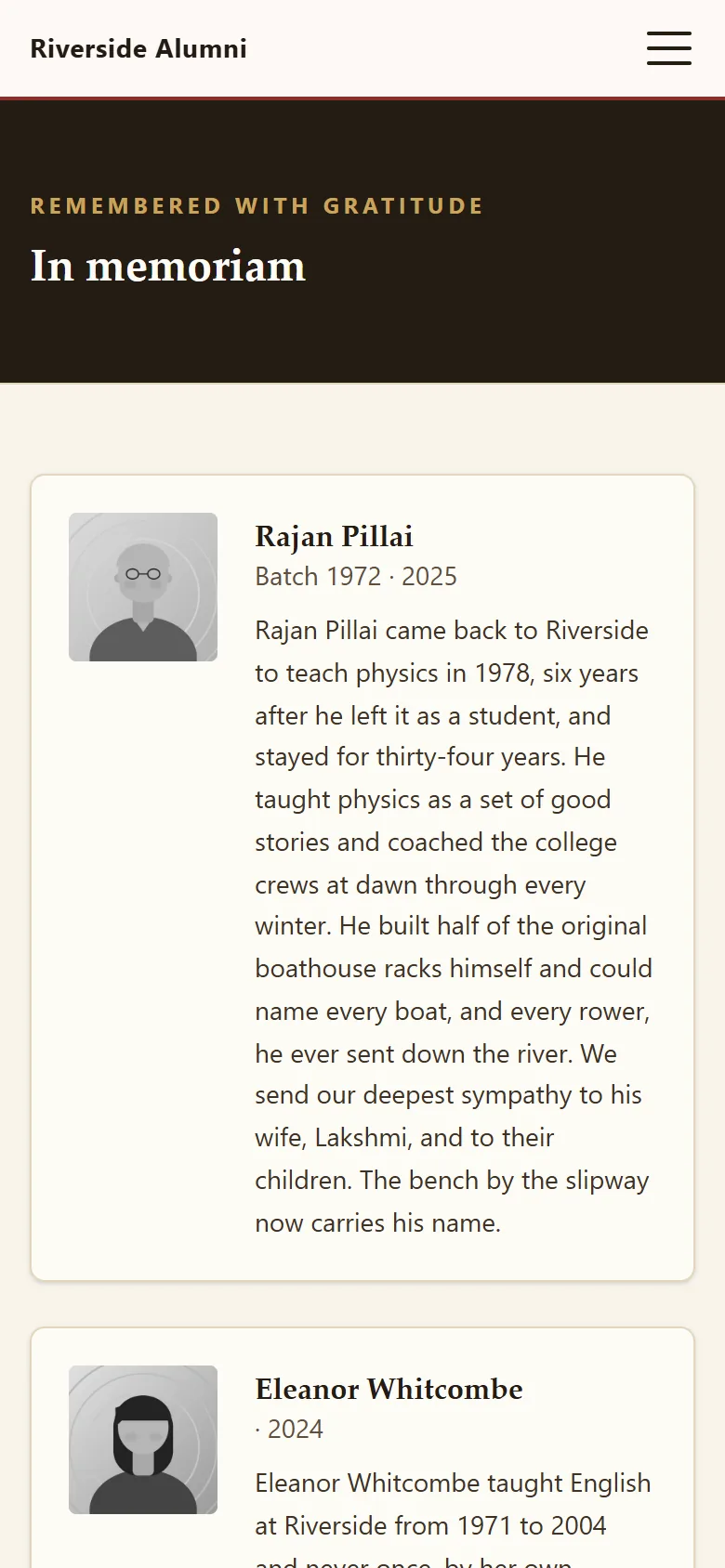
In Memoriam
In numbers
A few facts the tour skipped.
- 13admin areas you can hand to helpers
- 3admin layouts to choose from
- 7homepage block types
- 10profile fields each member can hide
Questions
About the tour.
Are these real screenshots?
The public pages are: each one is marked "Real screenshot" and was captured from the live demo. The signed-in screens are drawn with the same sample data and marked as drawings, because the demo's sign-in forms have a bot check that our screenshot robot cannot pass. Sign in yourself to see the real thing.
Does the tour show every feature?
No. It shows twelve stops out of fifteen feature areas. Mentoring, the job board, surveys, news, documents and the rest are on the features page, and all of them are in the demo.
Can I see the admin panel without signing in?
Not the real one, but signing in takes a minute: the administrator's email and tonight's password are published on the demo page. No form, no sales call.
Does it work on phones?
Yes. The public site, the member area and the admin panel all work at phone width, and members can install the site to their home screen like an app, with an offline page.
Is there a video tour?
Not yet. Short screen videos of the ten core tasks, from installing to sending a campaign, are planned for release 1.1. Until then, the live demo is the better video.
Open the live demo. It puts itself back every night.
Sign in as an admin or a member and click anything. Nothing you do can break it.
Sign-in details on the demo pageResets every night